Actions and algorithms
An action is a Python function with the name you want on the button, and the kit builds the matching controls from its argument types and runs the call on the ImFusion SDK thread. Whatever the function returns shows up in the viewer, and an existing ImFusion algorithm can be exposed the same way, by name.
Add an action
The callback signature determines what the application passes to it:
import imfusion

from imfusion_webappkit import WebApplicationController


# Receive the selected image.
@app.register("Process")
def process(imageset: imfusion.SharedImageSet) -> imfusion.SharedImageSet:
    return imageset


# Receive the selected image and active application.
@app.register("Process with progress")
def process_with_progress(
    imageset: imfusion.SharedImageSet,
    app: WebApplicationController,
) -> imfusion.SharedImageSet:
    app.update_progress(0.5, "Halfway done")
    return imageset


# Run without a selected image.
@app.register("Clear all")
def clear_all(app: WebApplicationController) -> None:
    app.data_model.clear()
The name app is reserved for application access. A callback may otherwise use
any name for its single positional data argument; image and imageset are
only conventional examples. Action names must be unique.
For an existing or imported callable, use the direct form without creating a forwarding wrapper:
Returned data is added to the synchronized data model. After modifying existing
data in place, return it or call app.data_model.update(index).
SDK algorithms can be registered for both Suite and WebApp with stacked decorators:
import imfusion


@app.register("Segment")
@imfusion.algorithm.register(display_name="Segment")
class Segment:
    image = imfusion.algorithm.Input(imfusion.SharedImageSet)
    threshold = imfusion.algorithm.ParamDouble("Threshold", default=0.5)

    def __call__(self):
        return run_segmentation(self.image, threshold=self.threshold)
The inner SDK decorator registers the algorithm and defines its Suite lifecycle.
The outer WebApp decorator exposes the same algorithm through the SDK algorithm
registry, preserving its compatibility checks and complete parameter metadata.
Portable algorithms do not receive the session-scoped app argument; use a
function action when direct WebApp access is required.
Add user-editable parameters
Declare typed parameters to generate a configuration dialog without creating a full workflow. Parameter values are validated by the server and passed to the callback as keyword arguments:
from imfusion_webappkit import (
    BoolParameter,
    ChoiceParameter,
    FloatParameter,
    IntParameter,
)


@app.register(
    "Segment",
    parameters=[
        FloatParameter(
            "threshold",
            label="Confidence threshold",
            default=0.5,
            minimum=0.0,
            maximum=1.0,
            step=0.05,
        ),
        ChoiceParameter(
            "model",
            options=["Fast", "Accurate"],
            default="Fast",
        ),
        BoolParameter("postprocess", default=True),
    ],
)
def segment(image, *, threshold, model, postprocess, app):
    app.update_progress(0.2, "Running inference")
    return run_segmentation(
        image,
        threshold=threshold,
        model=model,
        postprocess=postprocess,
    )
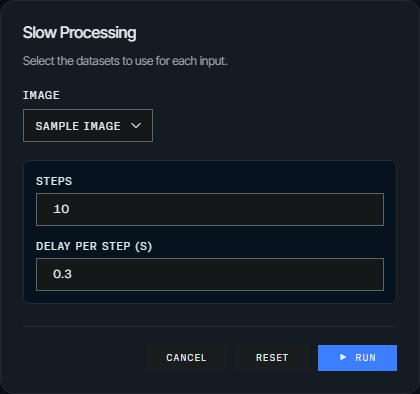
Available descriptors are BoolParameter, IntParameter, FloatParameter,
StringParameter, and ChoiceParameter. Numeric parameters support
minimum, maximum, step, and unit; every parameter can provide a display
label and description. The dialog remembers values for the current browser
session and provides a reset button.
Parameterized actions can also use named inputs. App-only callbacks can expose parameters without requiring a selected dataset:
@app.register(
    "Generate phantom",
    parameters=[IntParameter("size", default=128, minimum=32, maximum=512)],
)
def generate_phantom(*, size, app):
    app.data_model.add(create_phantom(size), "Phantom")
Use named inputs
For operations such as registration, declare multiple named inputs. The browser renders one dataset selector per input, and the callback receives a dictionary keyed by the input names:
import imfusion

from imfusion_webappkit import InputSpec


@app.register(
    "Register images",
    inputs=[
        InputSpec("fixed", "Fixed image"),
        InputSpec("moving", "Moving image"),
    ],
    result_input="moving",
)
def register(inputs, app):
    fixed = inputs["fixed"]
    moving = inputs["moving"]
    algorithm = imfusion.registration.ImageRegistrationAlgorithm(fixed, moving)
    algorithm()
    return imfusion.registration.apply_deformation(moving)
InputSpec.required controls whether an input must be selected.
result_input identifies the input to use when an operation modifies data in
place and has no explicit return value.
Expose ImFusion algorithms
Enable a generic panel that discovers algorithms compatible with the selected image when constructing the application:
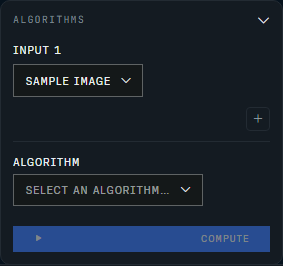
To show an Algorithms button alongside the other header actions instead:
Or expose one algorithm as a dedicated control:
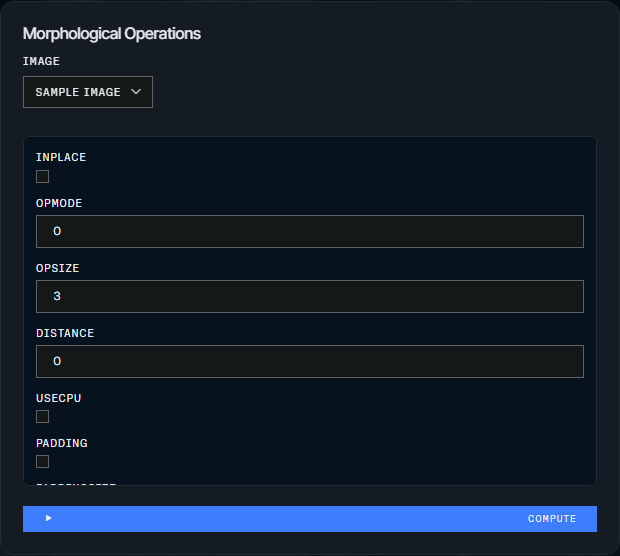
Dedicated controls also accept placement="sidebar" (the default) or
placement="header".
The algorithm ID must match an entry from
imfusion.algorithm.list_available().
Algorithm panels support the same named-input contract. ImFusion receives the datasets in declaration order:
app.register(
    "Registration",
    algorithm="Reg.ImageRegistration",
    inputs=[
        InputSpec("fixed", "Fixed image"),
        InputSpec("moving", "Moving image"),
    ],
    result_input="moving",
)
Python algorithms decorated with @imfusion.algorithm.register can also be
passed directly or exposed with the stacked-decorator form shown above. See
imfusion_webappkit/examples/registration_demo.py for a complete multi-input
example.
Data actions must declare at least one required input. Optional secondary inputs are supported, but an all-optional schema is rejected because it is ambiguous with an app-only action.
Session controller and jobs
The app callback argument is a session-scoped
WebApplicationController. It provides data_model, selected_data,
select_data, open, execute_algorithm, close_all, and
update_progress, as well as publish_results for explicit output
publication. It also exposes session_id, the optional workflow, and
cancellation_requested. Progress updates are published only while the session
has an active correlated job. See the
application API reference for the complete surface.
Actions, algorithm discovery, algorithm execution, dedicated controllers, and manual workflow runs and navigation use one correlated job protocol. Automatic workflow processing during initial startup and workflow step-data updates still run on the SDK owner thread, but do not create their own jobs. A browser session can have one in-flight job. ImFusion work is globally serialized on the SDK owner thread until the SDK explicitly guarantees broader thread safety.
Queued jobs can be cancelled immediately. A running native operation cannot be
interrupted generically by the Python SDK. Cancellation is recorded and
automatic publication of returned outputs is suppressed when possible.
In-place mutations and arbitrary callback side effects cannot be rolled back,
so long callbacks should check app.cancellation_requested before committing
those effects. The UI reports that native computation may continue.