Guided workflows
If a study has to run in a fixed order, define a workflow as a list of steps. The kit handles the UI and keeps state per session, including progress and cancellation, so a reviewer can reject a result and step back to an earlier step without restarting the session.
A workflow uses the same session controller, viewer, data model, and operation runtime as regular actions, and its factory is called once per browser session rather than once for the server.
Create a workflow
from imfusion_webappkit import (
    ExportStep,
    ImFusionWebApp,
    InputSelectionStep,
    InputSpec,
    MessageStep,
    Workflow,
)


def create_workflow(app):
    return Workflow(
        app,
        steps=[
            MessageStep("Welcome", "Load and review an image."),
            InputSelectionStep("Select image", inputs=[InputSpec("image", "Image")]),
            ExportStep(formats=["imf"]),
        ],
    )


webapp = ImFusionWebApp(
    title="Review workflow",
    show_load_button=False,
    show_export_button=False,
)
webapp.set_workflow(create_workflow)
webapp.run()
The workflow panel shows the step title, its contents, and the navigation and progress shared by every step:
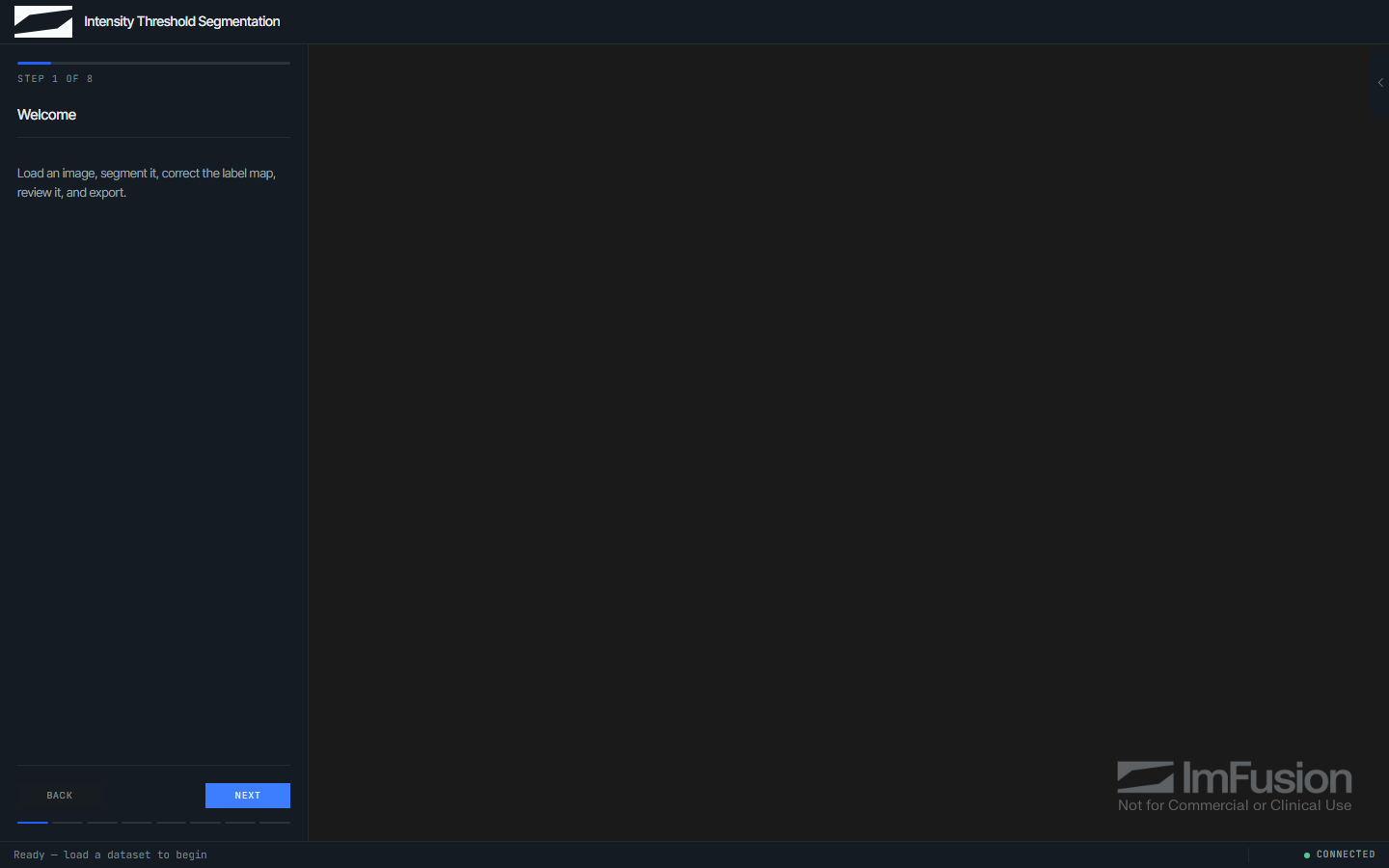
The factory's app argument is the session-scoped
WebApplicationController. Steps do not receive an internal Session.
Available steps
| Step | Purpose |
|---|---|
MessageStep |
Show instructional text |
InputSelectionStep |
Load datasets and assign them to named roles |
ParameterStep |
Collect typed parameter values |
ProcessingStep |
Run a callback and publish results |
BrushStep |
Edit a label map with the smart brush |
AnnotationStep |
Collect points, lines, boxes, or angles from the user |
ValidationStep |
Accept or reject a result before continuing |
ExportStep |
Export session data in chosen formats |
CustomStep |
Compose custom panel content from UI elements |
See the workflow API reference for constructors and options.
There is no built-in chat step: --template chat ships ConversationStep, a
CustomStep subclass whose transcript and model call live in the generated
project rather than in the kit, as described under
Command-line setup.
InputSelectionStep is the entry point of every workflow that processes data:
it both loads datasets and assigns them to the roles later steps consume. It
displays one selector per InputSpec. Set allow_upload=False when users must
choose only from data that is already in the session.
Any sample_datasets configured on the app are offered in the step as well;
they follow allow_upload unless allow_sample_datasets says otherwise.
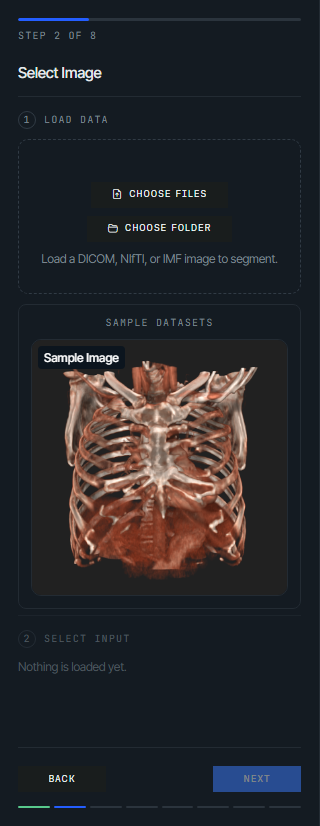
Roles reference datasets directly. If an assigned dataset leaves the session, the role is cleared and the step blocks until it is reassigned.
While the step is active, loading data assigns it automatically. A step with a single role always follows the newest dataset, so loading another image replaces the previous choice. A step with several roles fills the unassigned required roles in declaration order. Assignment also drives the viewer: only the assigned datasets stay visible, which keeps the display and the workflow inputs in agreement.
ParameterStep declares user-editable values using the same
BoolParameter, IntParameter, FloatParameter, StringParameter, and
ChoiceParameter classes as action parameters:
from imfusion_webappkit import FloatParameter, ParameterStep


ParameterStep(
    "Configure",
    parameters=[
        FloatParameter(
            "threshold",
            label="Intensity threshold",
            default=100.0,
            minimum=-1000.0,
            maximum=4096.0,
            step=1.0,
        ),
    ],
    step_id="configure",
)
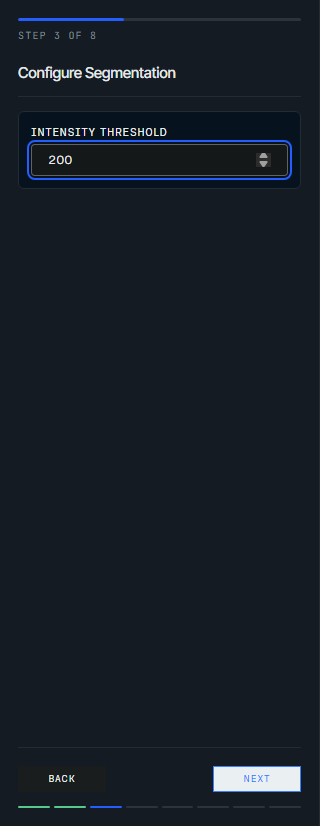
Values are validated the same way as action parameters and are available as
step.values, keyed by parameter name. Descriptor options are listed in the
parameter API reference.
Reuse action callbacks
Processing callbacks use the same data, app, and keyword-parameter contract as
regular actions:
def register(fixed, moving, app):
    return app.execute_algorithm("ImageRegistration", [fixed, moving])


workflow = Workflow(
    app,
    steps=[
        InputSelectionStep(
            "Select registration inputs",
            step_id="registration_inputs",
            inputs=[
                InputSpec("fixed", "Fixed image"),
                InputSpec("moving", "Moving image"),
            ],
        ),
        ProcessingStep(
            "Register",
            callback=register,
            inputs_from="registration_inputs",
        ),
    ],
)
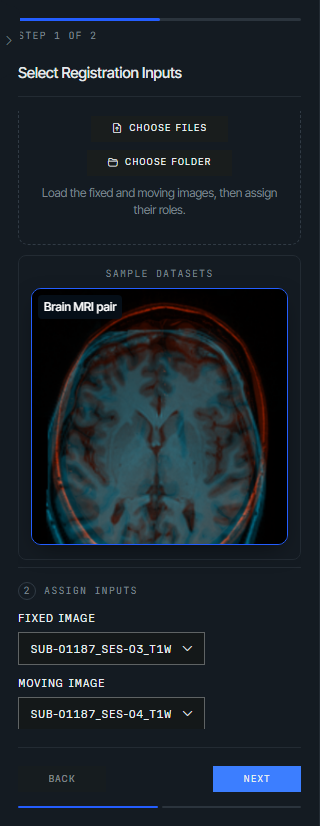
Each InputSpec becomes one selector in the step's panel, so the operator assigns
a loaded dataset to every role before the step reports completion:
Bind earlier steps
inputs_from and parameters_from bind earlier selection and parameter steps
and infer direct dependencies. Use depends_on for any additional dependency
relationships.
Callback inputs
When inputs_from resolves to more than one dataset, each InputSpec role is
unpacked into the matching callback parameter by name, like pytest does with
parametrized values. A callback that instead declares a single catch-all
parameter (for example def register(inputs, app)) receives the roles as one
{key: dataset} dict.
When inputs_from is omitted, the step uses the browser selection and tracks
the inputs and outputs from each run. Revisiting the step excludes its own
published outputs, so a derived label map does not replace the source image.
Prefer an InputSelectionStep when the input role should stay explicit or when
several source datasets may be selected.
Repeated runs and navigation
Repeated runs replace the step's previous generated outputs in place, so dataset indices, names, and browser selection stay stable instead of accumulating another result for every run.
Returned data follows the regular action policy: existing data is refreshed in place and new outputs are inserted into the session data model.
Auto-run and auto-proceed
- Set
auto_run=Falsefor expensive or user-initiated work. The step then shows an explicit run button instead of starting on entry. Customize its text withrun_label, for examplerun_label="Run Segmentation". The Next button stays disabled until processing succeeds. - Set
auto_proceed=Trueto advance immediately after a successful callback. Callback exceptions remain visible on the step.
Edit label maps
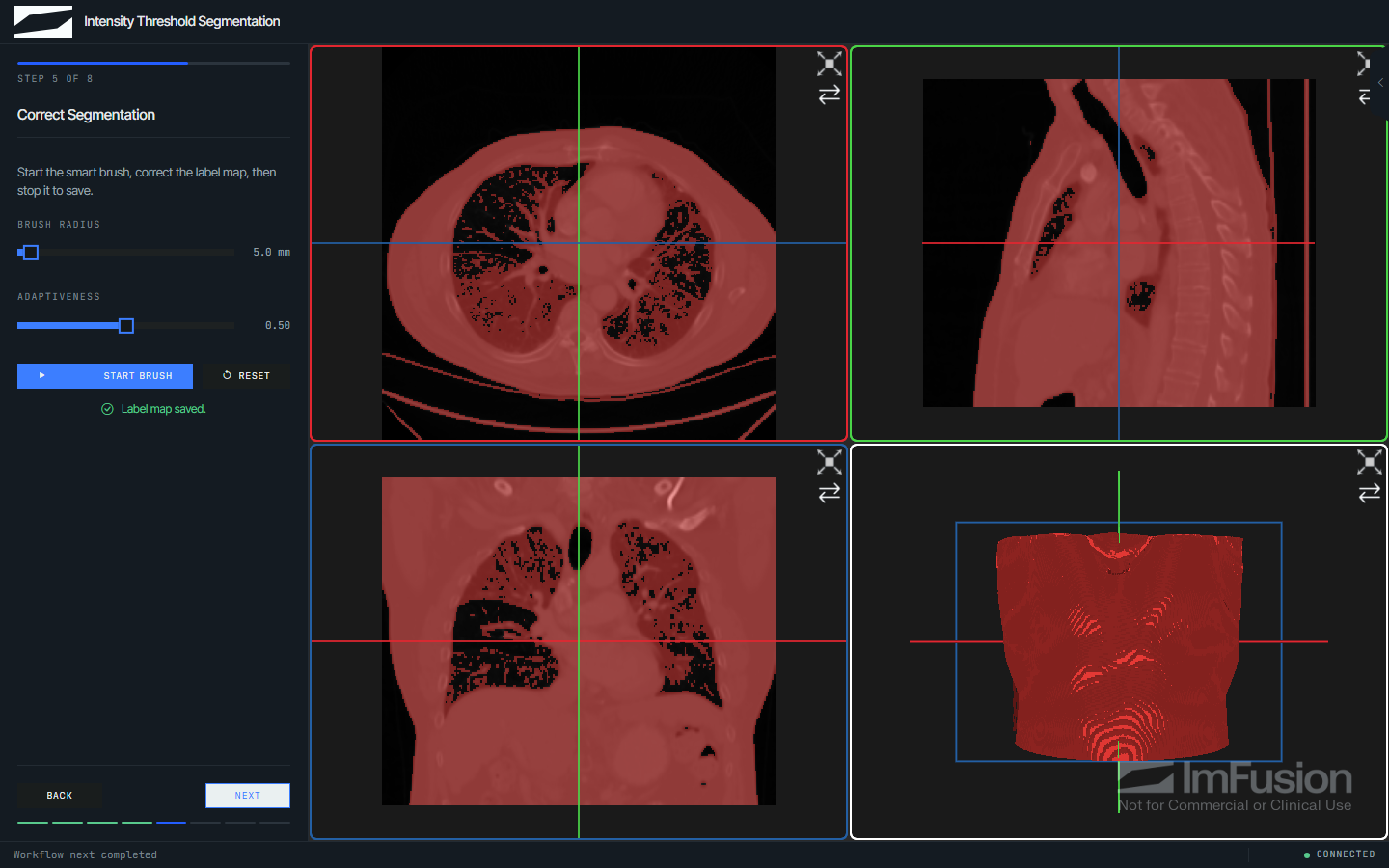
BrushStep enables the Web SDK smart brush for an image and optional label
map. A common segmentation workflow uses the source inputs from a
ProcessingStep automatically:
from imfusion_webappkit import BrushStep


BrushStep(
    "Correct Segmentation",
    label_map_from="segment",
    radius_mm=10.0,
    adaptiveness=0.5,
)
Set image_from to an InputSelectionStep ID when the source image cannot be
inferred from label_map_from. For multi-input selection steps, also set
image_role (and label_map_role if label_map_from points at the same
multi-input step). If label_map_from is omitted, the browser creates a
compatible label map and adds it to the session when the user selects Stop
Brush. When an existing label map is supplied, Next is available
immediately so the user can skip correction. Starting the brush disables
Next until the edits are stopped and committed.
The radius is measured in millimeters and adaptiveness must be between 0 and 1.
Set allow_radius_change=False or allow_adaptiveness_change=False to lock a
configured value; both remain adjustable whether or not the brush is active.
Set labels to the list of pixel values the user is allowed to paint (default
(1,)); a label picker only appears in the browser when more than one value
is configured. Users can also press the Space bar to start or stop the brush,
and a Reset button discards all local edits made since entering the step
(available whether or not the brush is currently active) and restores the
label map exactly as it was found. Brush edits are committed to the server
before the workflow can advance, so later processing and all export formats
see the edited data.
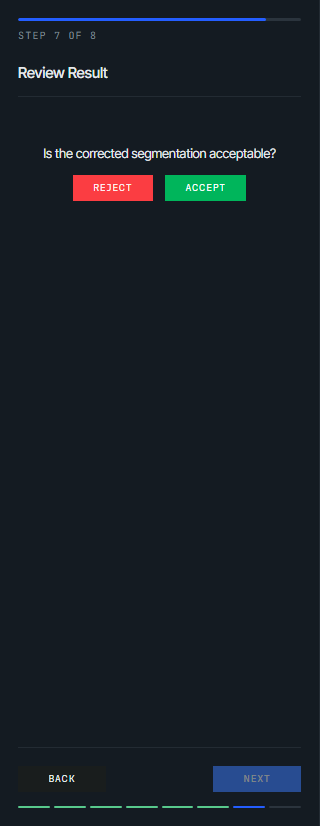
ValidationStep asks the user to accept or reject a result. Only Accept
enables the Next button; Reject keeps the workflow on the step and reports
that earlier settings need adjusting.
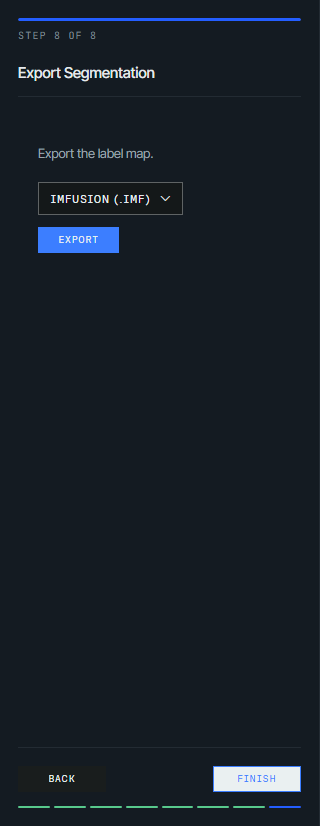
ExportStep accepts formats to restrict the available formats. By default,
require_export_before_finish=True keeps the Next button disabled until an
export succeeds; set it to False when export is optional.
Build a custom step
CustomStep describes its contents with the elements in
imfusion_webappkit.ui_elements, so steps that report results or collect
decisions need no browser code:
from imfusion_webappkit import CustomStep, Metric, Metrics, Table, Text


CustomStep(
    "Summary",
    body=[
        Text("Review the measurements before exporting."),
        Metrics([Metric("Dice", 0.91), Metric("Volume", 12.5, unit="mL")]),
        Table([{"Label": "Liver", "Voxels": 15020}]),
    ],
    step_id="summary",
)
The available elements are Text (Markdown), Alert, Metrics, Table,
Chart, Image, Fields, and Button. Values are displayed as provided, so
round or format them first. A browser skips elements it does not recognize,
which keeps older clients usable against newer applications.
Chart plots one or more Series as a line, bar, or scatter variant.
Series positions are either numbers, such as histogram bins, or strings, which
the browser draws as evenly spaced categories:
from imfusion_webappkit import Chart, Series


Chart(
    "bar",
    Series("Volume", [1502.0, 210.5], x=["Liver", "Spleen"]),
    x_label="Structure",
    y_label="mL",
)
Passing a mapping of label to values is shorthand for one series per entry, and a series without positions is plotted against the index of each value. A chart summarizes a result at panel width, so it accepts at most 8 series of 1024 values; subsample longer profiles before plotting them.
Image displays PNG, JPEG, or WebP data, or the path of such a file. Use it for
content that has no position in space, such as a rendered plot:
import io

from imfusion_webappkit import Image


buffer = io.BytesIO()
figure.savefig(buffer, format="png", dpi=140)
Image(buffer.getvalue(), caption="Intensity distribution")
Note
Images are re-sent with every workflow state update and are capped at 4 MiB, so keep them small. Results that do have a position in space belong in the session data model, where the viewer can display them alongside the other datasets.
Subclass CustomStep and override body() when the contents depend on session
data. The browser rebuilds the step on every workflow state update, so compute
expensive values in on_enter() and let body() return the result:
class SummaryStep(CustomStep):
    def __init__(self):
        super().__init__("Summary", step_id="summary")
        self._elements = []

    def on_enter(self):
        label_map = self.app.workflow.get_step("segment").result
        self._elements = [Metrics({"Labelled voxels": count_voxels(label_map)})]

    def body(self):
        return self._elements
Fields reuses the parameter classes described above. Its values are validated
by the server and available as step.values, keyed by parameter name.
Button elements call the step's on_action hook with the button's action
identifier:
class ReportStep(CustomStep):
    def __init__(self):
        super().__init__(
            "Report",
            body=[Button("save_report", "Save report", style="primary", job=True)],
            step_id="report",
            require_completion=True,
        )

    def on_action(self, action):
        self.app.update_progress(0.5, "Writing report")
        write_report(self.app.data_model)
        self.completed = True
Set job=True for handlers that do more than update step state. The press then
enters the same per-session job queue as actions, so it reports progress, can be
cancelled, and shows failures in the browser. Handlers without job=True still
run on the SDK owner thread and block other work while they run, but have no
correlated job to report through.
require_completion=True keeps the Next button disabled until the step sets
completed. Field values and completion are both part of the step's dependency
value, so changing either invalidates dependent steps without extra code.
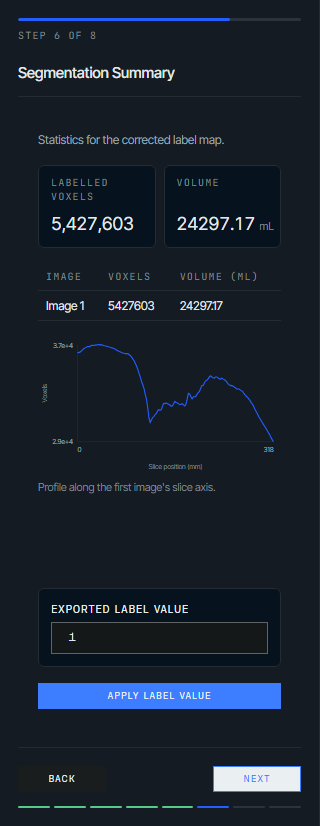
SegmentationSummaryStep in imfusion_webappkit/examples/workflow_demo.py
combines most elements in one step: it measures a label map on entry, reports
the result as metrics, a table, and a slice profile chart, and applies a
browser-selected label value from a job-backed button.
Workflow completion
Advancing from the final step completes and immediately resets the workflow for another run. Resetting clears the session data model and viewer, resets all step state, and enters the first step again. Persist results outside the session before finishing when they must survive the reset.
Runtime behavior
Manual workflow runs and Next/Back navigation share the same per-session job queue as actions and algorithms. A session may have one in-flight job. Step-data updates and automatic processing during initial workflow startup still run on the SDK owner thread, but without a separate correlated job. See Session controller and jobs for progress reporting and cancellation.
Examples
The sidebar and workflow panel can be enabled together. See
imfusion_webappkit/examples/workflow_demo.py and
registration_workflow_demo.py, or launch the guided demo with
imfusion-webappkit demo --workflow.
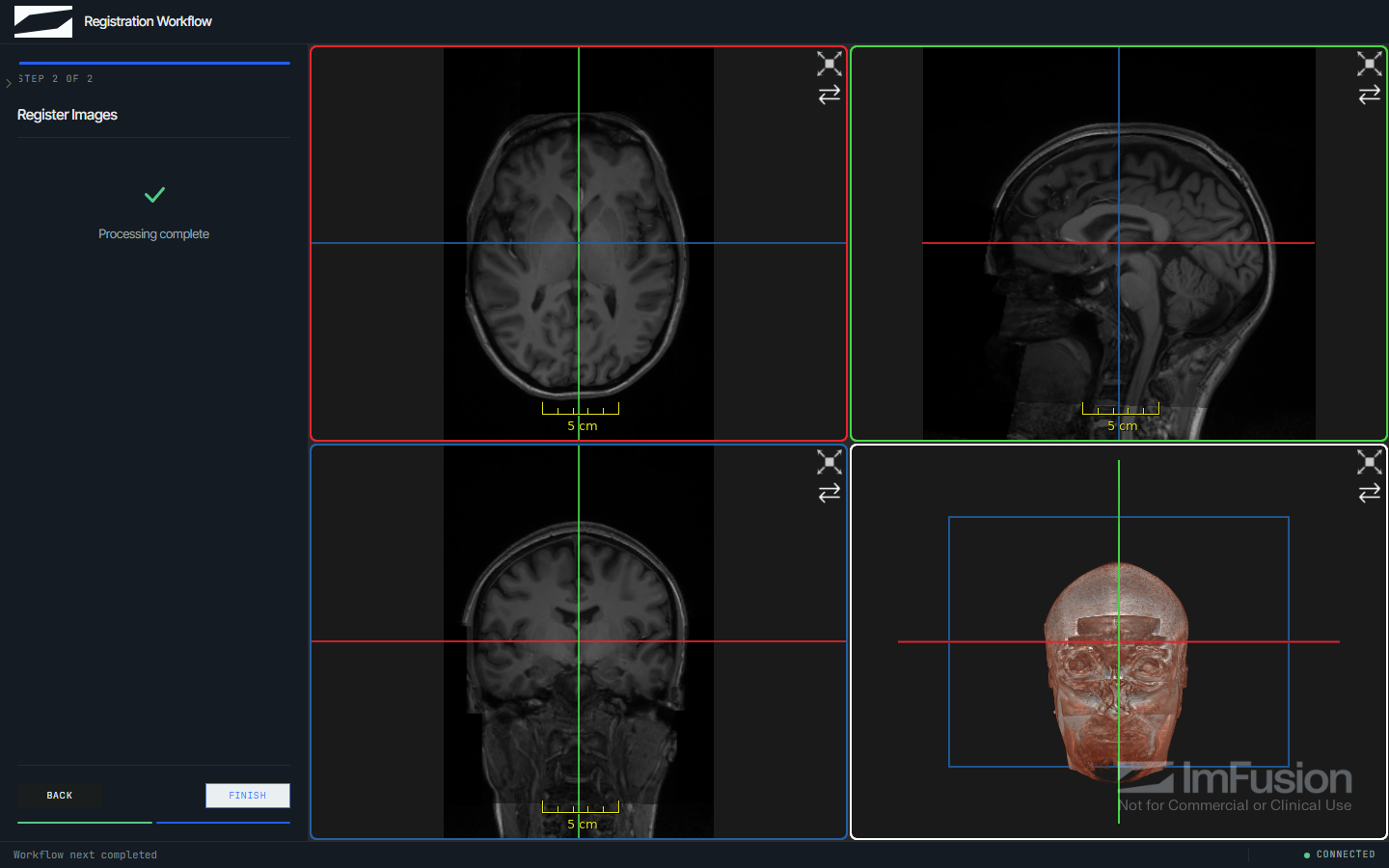
registration_workflow_demo.py is the two-step workflow used above, from role
assignment to the registered result added beside its inputs: